Mapper Operations
The Mapper Operations page provides visibility into the data transformation process that converts source data into the CryspIQ® Enterprise Data Model.
The Mapper service applies the CryspIQ® methodology by:
- Applying Message Maps
- Applying Defaults
- Applying Transformation Methods
- Applying Data Quality Rules
- Adding Business Context
- Preparing data for loading into the Enterprise Data Model
This page enables administrators to:
- Monitor mapping activity
- Review processing performance
- Investigate errors and warnings
- Validate mapping outcomes
- Troubleshoot transformation issues
Overview
The Mapper service sits between data extraction and data loading.
Source Data
      ↓
Source Message Validation
      ↓
Message Map
      ↓
Defaults
      ↓
Methods
      ↓
Data Quality Rules
      ↓
Business Context
      ↓
Prepared Data
      ↓
Load Service
The Mapper is responsible for transforming raw source data into meaningful enterprise information.
Event-Driven Processing
Unlike other services, the Mapper operates automatically.
Processing begins whenever source data arrives.
Important
The Mapper service is event-driven.
There is:
- No Schedule
- No Pause Schedule
- No Resume Schedule
As soon as a valid source file is received, processing starts automatically.
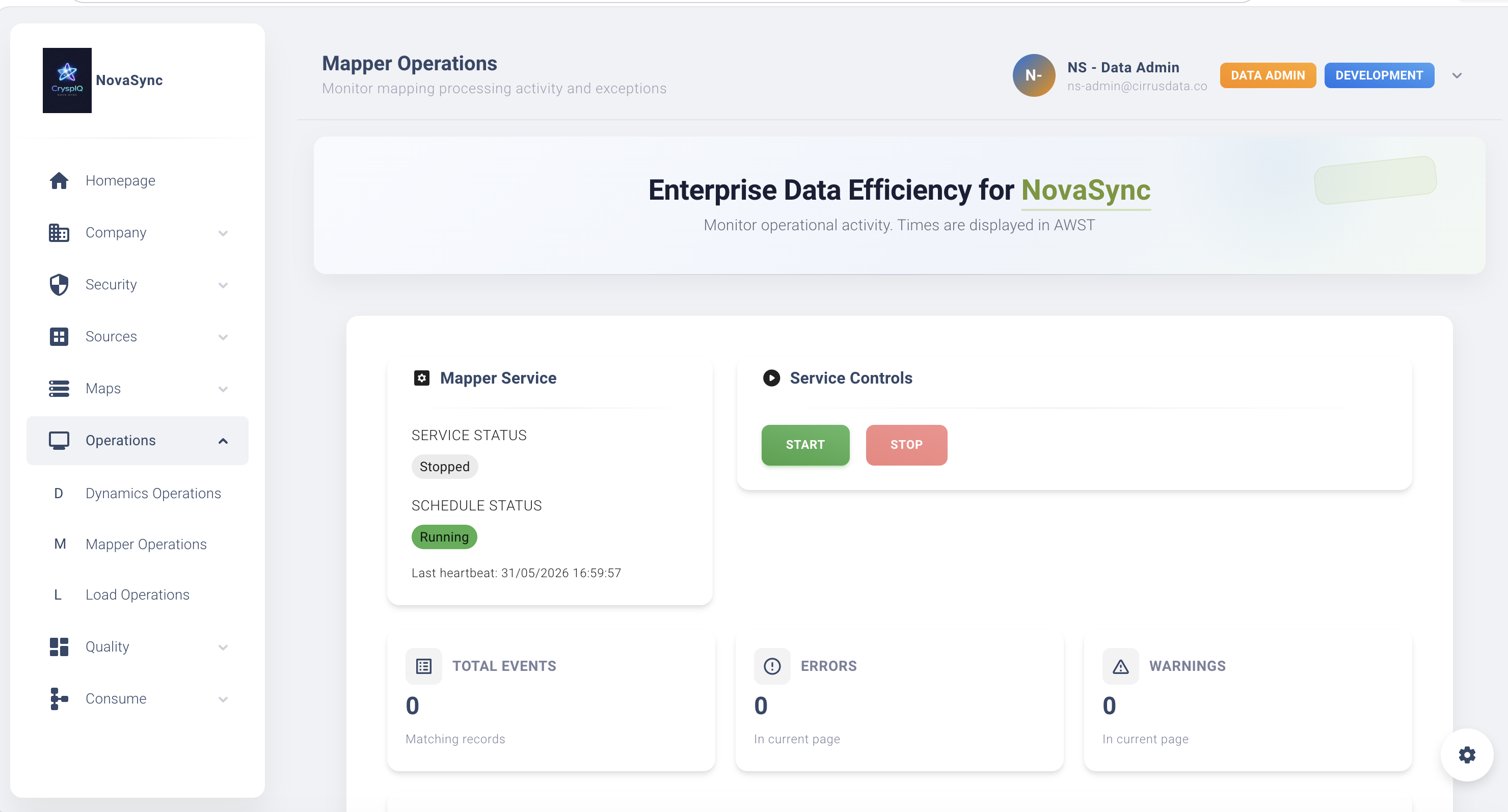
Screen Overview
Service Status
Displays the current state of the Mapper service.
Possible values:
| Status | Description |
|---|---|
| Running | Service operating normally |
| Stopped | Service not running |
| Starting | Service starting |
| Stopping | Service shutting down |
Last Heartbeat
Displays the most recent successful communication from the Mapper service.
A stale heartbeat may indicate:
- Service outage
- Infrastructure failure
- Processing interruption
- Database connectivity issues
Statistics
Provides operational metrics including:
- Total Runs
- Successful Runs
- Errors
- Warnings
- Records Processed
- Processing Duration
These metrics help administrators quickly assess processing health.
Monitoring Mapper Activity
Administrators should regularly monitor:
Processing Volumes
Review:
- Number of files processed
- Number of records processed
- Processing durations
Unexpected changes may indicate upstream issues.
Errors
Review all failed mapping runs.
Common causes include:
- Invalid mappings
- Missing source fields
- Invalid defaults
- Method failures
- Data quality rule failures
Warnings
Warnings indicate potential issues that did not stop processing.
Examples:
- Missing optional values
- Default values applied
- Data quality thresholds exceeded
Warnings should be reviewed regularly.
Understanding Mapper Processing
During processing, CryspIQ® performs several activities.
Source Validation
The incoming file is validated against the Source Message definition.
Checks include:
- Message exists
- Mandatory fields exist
- Structure is valid
Mapping
Source fields are mapped into target fields using the configured Message Map.
Example:
| Source Field | Target Field |
|---|---|
| CustomerId | Entity Business Key |
| CustomerName | Entity Name |
| InvoiceAmount | Fact Value |
Defaults
Missing values may be supplemented using configured defaults.
Example:
Country = Australia
Methods
Preparation methods are applied.
Examples include:
- Date conversion
- Text standardisation
- Calculations
- API lookups
- Azure Functions
- Python scripts
Data Quality Rules
Data Quality Rules are evaluated.
Rules may:
- Validate formats
- Check mandatory values
- Apply business logic
- Assess data quality dimensions
Business Context
CryspIQ® assigns contextual meaning to the data.
This step transforms raw source data into governed enterprise information.
Common Processing Failures
Most Mapper issues fall into several categories.
Mapping Failure
Symptoms
Status displays:
Error
Common Causes
- Incorrect Message Map
- Invalid target field
- Missing source field
- Mapping configuration error
Resolution
- Review Mapper logs.
- Open the Message Map.
- Validate field mappings.
- Correct the configuration.
- Reprocess the data.
Mandatory Field Failure
Symptoms
Records fail validation.
Common Causes
Mandatory source fields are missing.
Examples:
CustomerId
ProductCode
InvoiceNumber
Resolution
- Review Source Message definition.
- Verify extracted data contains required fields.
- Update extraction query if necessary.
- Reprocess the file.
Default Configuration Failure
Symptoms
Records fail during processing.
Common Causes
- Missing default
- Invalid default value
- Incorrect default assignment
Resolution
- Review assigned defaults.
- Validate default values.
- Correct configuration.
- Re-run processing.
Method Failure
Symptoms
Preparation processing fails.
Common Causes
- Python script error
- Azure Function unavailable
- API unavailable
- .NET method exception
- Invalid transformation logic
Resolution
- Review method configuration.
- Review logs.
- Test method independently.
- Correct the issue.
- Reprocess data.
Data Quality Rule Failure
Symptoms
Records rejected during validation.
Common Causes
- Mandatory value missing
- Invalid format
- Business rule violation
- External validation failure
Resolution
- Review failed rule.
- Correct source data.
- Adjust rule if required.
- Reprocess data.
Recovering From Mapping Errors
In some situations administrators may need to stop processing while corrections are made.
Typical Recovery Process
- Stop the Mapper service.
- Review the error.
- Update the Message Map.
- Update Defaults or Methods if required.
- Correct source data if necessary.
- Re-extract data from the source system.
- Re-submit the source data.
- Restart the Mapper service.
- Monitor processing results.
This approach ensures data is transformed correctly before loading into CryspIQ®.
Monitoring Best Practices
Daily
- Review service status
- Check heartbeat activity
- Review errors
- Review warnings
Weekly
- Review processing volumes
- Review recurring failures
- Validate mapping configurations
Monthly
- Review Message Maps
- Review Defaults
- Review Methods
- Review Data Quality Rules
Troubleshooting Checklist
When investigating Mapper issues:
Step 1
Verify the Mapper service is running.
Step 2
Review the latest Mapper run.
Step 3
Review processing logs.
Step 4
Validate the Source Message.
Step 5
Validate the Message Map.
Step 6
Review assigned Defaults.
Step 7
Review assigned Methods.
Step 8
Review Data Quality Rules.
Step 9
Reprocess the data.
Related Guides
- Create Message Maps
- Methods
- Defaults
- Data Quality Rules
- Source Messages
- Dynamics Operations
- Load Operations
Next Steps
Once Mapper processing is operating successfully:
- Monitor Load Operations.
- Review Data Quality Dashboards.
- Validate reporting outputs.
- Review enterprise data completeness.
- Confirm business context is being applied correctly.
The Mapper service is where CryspIQ® methodology is applied, transforming raw source data into trusted, governed and AI-ready enterprise information.