Manage FetchXML Queries
The FetchXML Query page enables Data Administrators to manage the Microsoft Dynamics CRM queries used by CryspIQ® to extract source data.
CryspIQ® uses FetchXML, Microsoft's native query language for Dynamics CRM, to define what data should be extracted from Dynamics.
These queries are executed by the Microsoft Dynamics Plug-in, a Windows service that reads the query library, extracts the requested data, and prepares it for processing within CryspIQ®.
Overview
FetchXML queries define:
- Which Dynamics entities should be extracted
- Which fields should be included
- Any filtering conditions
- Relationships between entities
- Incremental extraction logic
The extraction process follows the workflow below:
FetchXML Query Library
          ↓
Dynamics Plug-in Service
          ↓
Microsoft Dynamics CRM
          ↓
Extract Source Data
          ↓
Source Message
          ↓
Message Map
          ↓
CryspIQ® Enterprise Data Model
Why FetchXML Queries Matter
The query library provides a controlled and reusable way to manage data extraction from Dynamics.
Benefits include:
- Centralised management of extraction logic
- Consistent source data structures
- Reusable integration patterns
- Easier maintenance and troubleshooting
- Reduced dependency on custom code
Before You Start
Before creating a FetchXML query:
- You must have Data Administrator access.
- The Dynamics connector must be configured.
- You should understand the Dynamics entity being extracted.
- A Source Message should exist or be planned.
- A Message Map should exist or be planned.
FetchXML queries define what data is extracted.
Source Messages define the structure of the data.
Message Maps define how the data is transformed into CryspIQ® business context.
Navigate to FetchXML Query
From the main menu navigate to:
Sources → FetchXML Query
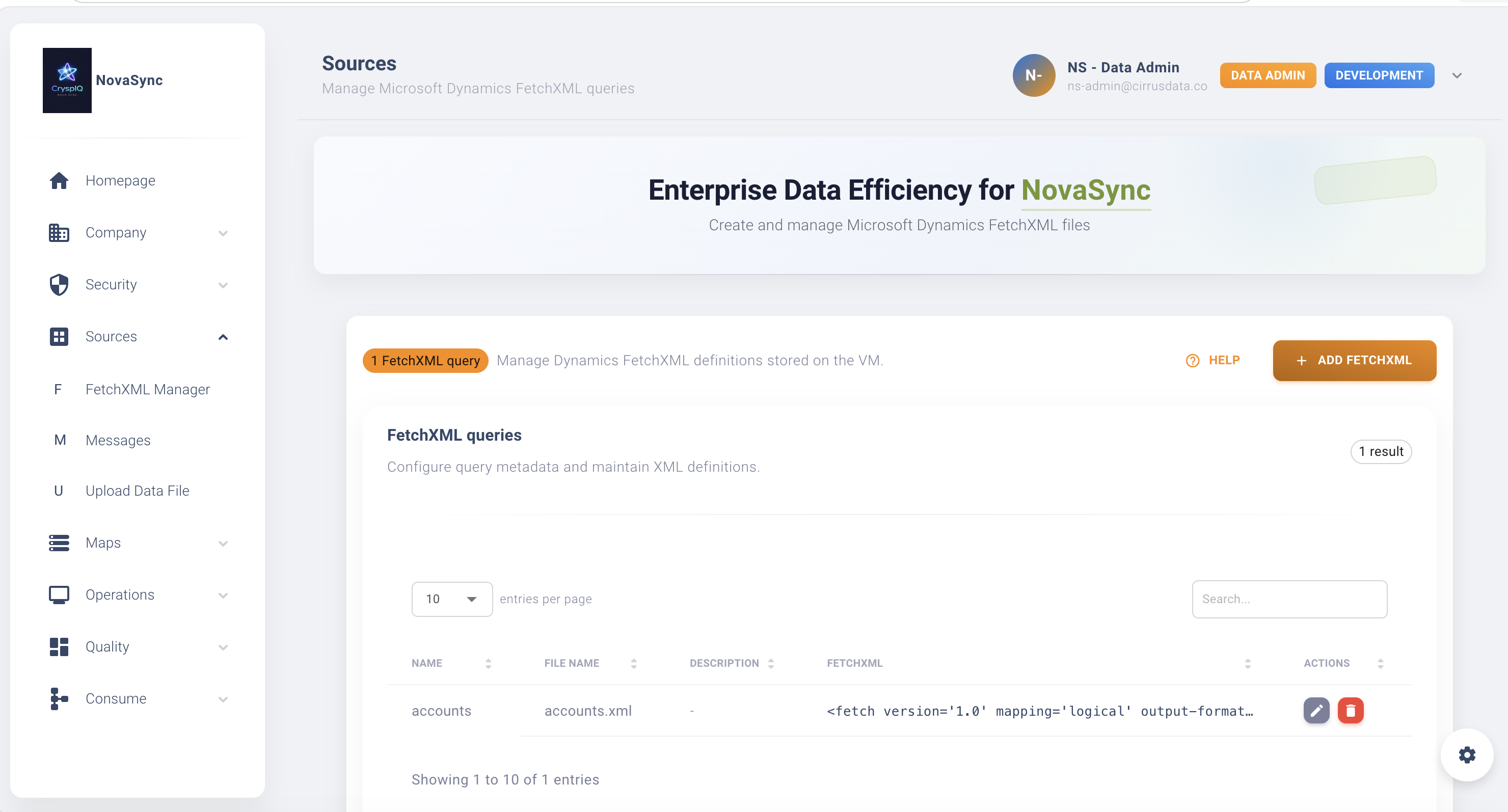
The FetchXML Query page displays all configured Dynamics extraction queries.
Query Library
The query library contains all FetchXML extraction definitions available to the Dynamics plug-in.
Data Administrators can:
- Create queries
- View queries
- Edit queries
- Delete queries
Each query typically extracts data from a specific Dynamics entity.
Examples include:
Accounts
Contacts
Opportunities
Cases
Activities
Products
Invoices
Create a New FetchXML Query
To create a new query:
- Open Sources → FetchXML Query.
- Select Add Query.
- Enter a Query Name.
- Enter a File Name.
- Enter a Description.
- Paste or enter the FetchXML.
- Save the query.
After saving, the query becomes available to the Dynamics Plug-in.
Query Name
Use meaningful names that identify the business object being extracted.
Good examples:
Accounts
Contacts
Opportunities
Products
Invoices
Avoid:
Test
Query1
ExtractNew
File Name
The file name identifies the query file consumed by the Dynamics Plug-in.
Examples:
accounts.xml
contacts.xml
opportunities.xml
Use names that align with the query purpose.
Description
Use the description to explain:
- What data is extracted
- Why it exists
- Any important filters or assumptions
Example:
Extracts active customer accounts from Dynamics CRM for loading into the CryspIQ® enterprise data model.
Example FetchXML Query
A simple FetchXML query may look like:
<fetch>
  <entity name="account">
    <attribute name="accountid" />
    <attribute name="name" />
    <attribute name="accountnumber" />
    <attribute name="modifiedon" />
  </entity>
</fetch>
This query extracts:
- Account ID
- Account Name
- Account Number
- Last Modified Date
Edit an Existing Query
To modify a query:
- Open Sources → FetchXML Query.
- Locate the query.
- Select Edit.
- Update the details.
- Save changes.
Common updates include:
- Adding fields
- Removing fields
- Changing filters
- Updating descriptions
- Supporting new business requirements
Whenever a query structure changes, review any related Source Messages and Message Maps to ensure compatibility.
Delete a Query
To remove a query:
- Open Sources → FetchXML Query.
- Locate the query.
- Select Delete.
- Confirm the action.
Only delete queries that are no longer required.
Deleting a query may stop a Dynamics extract from running successfully.
How the Dynamics Plug-in Works
The Microsoft Dynamics Plug-in runs as a Windows service.
The service performs the following tasks:
- Reads the configured FetchXML queries.
- Connects to Microsoft Dynamics CRM.
- Executes the queries.
- Retrieves the requested records.
- Creates source files for processing.
- Submits the extracted data into the CryspIQ® processing pipeline.
The plug-in operates automatically according to its configured schedule.
Incremental Data Extraction
Most production integrations use incremental extraction.
Rather than extracting all records every time, only records changed since the last successful run are retrieved.
Common incremental fields include:
modifiedon
createdon
Benefits include:
- Faster extraction
- Lower load on Dynamics
- Reduced processing time
- Improved scalability
Monitoring Query Execution
Dynamics extraction activity can be monitored through:
Operations → Dynamics Operations
Administrators can review:
- Execution history
- Run status
- Record counts
- Processing duration
- Errors and warnings
Beyond Microsoft Dynamics
The Dynamics Plug-in demonstrates a broader CryspIQ® integration pattern.
The same architecture can be used for virtually any source system.
Examples include:
REST APIs
Extract data from:
- ERP systems
- CRM platforms
- Cloud applications
- Third-party services
Webhooks
Receive real-time events from:
- SaaS applications
- Operational systems
- Monitoring platforms
Database Extracts
Extract data from:
- SQL Server
- Oracle
- PostgreSQL
- MySQL
Batch File Processing
Import:
- CSV files
- XML files
- JSON files
- Flat files
Plug-in Development
Organisations can build their own plug-ins using internal IT teams, implementation partners or system integrators.
Custom plug-ins can:
- Connect to source systems
- Execute queries
- Call APIs
- Process events
- Generate source messages
- Deliver data into CryspIQ®
The pattern remains consistent:
Source System
        ↓
Custom Plug-in
        ↓
Source Message
        ↓
Message Map
        ↓
CryspIQ® Enterprise Data Model
This approach allows organisations to integrate virtually any source system without modifying the CryspIQ® platform itself.
Best Practices
Use Meaningful Query Names
Choose names that clearly identify the business object being extracted.
Include Business Keys
Always extract source system identifiers.
Examples:
accountid
contactid
customerid
productid
Include Audit Fields
Where available, include:
createdon
modifiedon
ownerid
These fields support lineage and governance.
Keep Queries Focused
Extract only the fields required by the Source Message and Message Map.
Avoid extracting unnecessary data.
Monitor Regularly
Review Dynamics Operations regularly to ensure extraction jobs remain healthy.
Troubleshooting
Query Returns No Data
Check:
- FetchXML filters
- Entity permissions
- Source data availability
Query Fails
Check:
- XML syntax
- Dynamics connectivity
- User permissions
- Plug-in logs
Mapping Errors Occur
Verify:
- Source Message structure
- Message Map configuration
- Field names returned by the query
Plug-in Is Not Running
Review:
- Windows Service status
- Dynamics Operations logs
- Connector configuration
Related Guides
- Source Messages
- Upload Source Data
- Create Message Map
- Dynamics Operations
- Platform Plug-ins
- Navigation
Next Steps
After creating a FetchXML query:
- Validate the query output.
- Confirm the Source Message exists.
- Confirm the Message Map exists.
- Run the Dynamics extraction.
- Monitor the run in Dynamics Operations.
- Verify data has been loaded into CryspIQ®.
FetchXML queries form the foundation of Microsoft Dynamics integrations and demonstrate the broader plug-in architecture that can be extended to virtually any enterprise source system.