Source Messages
Source Messages define the structure of data that CryspIQ® expects to receive from a source system.
A Data Administrator can create a Source Message by importing a CSV file. The CSV file acts as the schema definition for the incoming data and tells CryspIQ® which fields are expected when data is received.
What is a Source Message?
A Source Message represents the expected structure of a file, extract or data object received from a source system.
For example, if a source system provides a customer file, the Source Message defines the fields expected in that file.
Example fields may include:
CustomerId
CustomerName
DateOfBirth
EmailAddress
PhoneNumber
Status
Once created, the Source Message can be used for:
- Validating incoming data
- Mapping source fields to target messages
- Applying data quality rules
- Assigning data ownership
- Tracking lineage back to the source system
When to Create a Source Message
Create a new Source Message when:
- A new source system is being added.
- A new file or extract is being received.
- The structure of source data needs to be defined.
- A source message is required before creating a map.
- CryspIQ® needs to understand the fields expected from the source system.
Before You Start
Before importing a Source Message, confirm that:
- You have Data Administrator access.
- The source system and data extract have been agreed.
- You have a CSV file containing the expected field structure.
- The CSV file contains column headers.
- Column names are meaningful and stable.
The CSV file used to create a Source Message defines the structure CryspIQ® expects to receive. It does not need to contain production data.
CSV File Requirements
The CSV file must include a header row.
Each column in the header row becomes a source field within the Source Message.
Example:
CustomerId,CustomerName,DateOfBirth,EmailAddress,PhoneNumber,Status
Recommended rules:
| Requirement | Description |
|---|---|
| Header row | The first row must contain column names. |
| Meaningful names | Use names that clearly describe the field. |
| No blank columns | Every column should have a name. |
| Stable structure | Avoid changing column names after maps have been created. |
| No duplicate columns | Each field name should be unique. |
Use business-friendly field names where possible. This makes mapping and governance easier later.
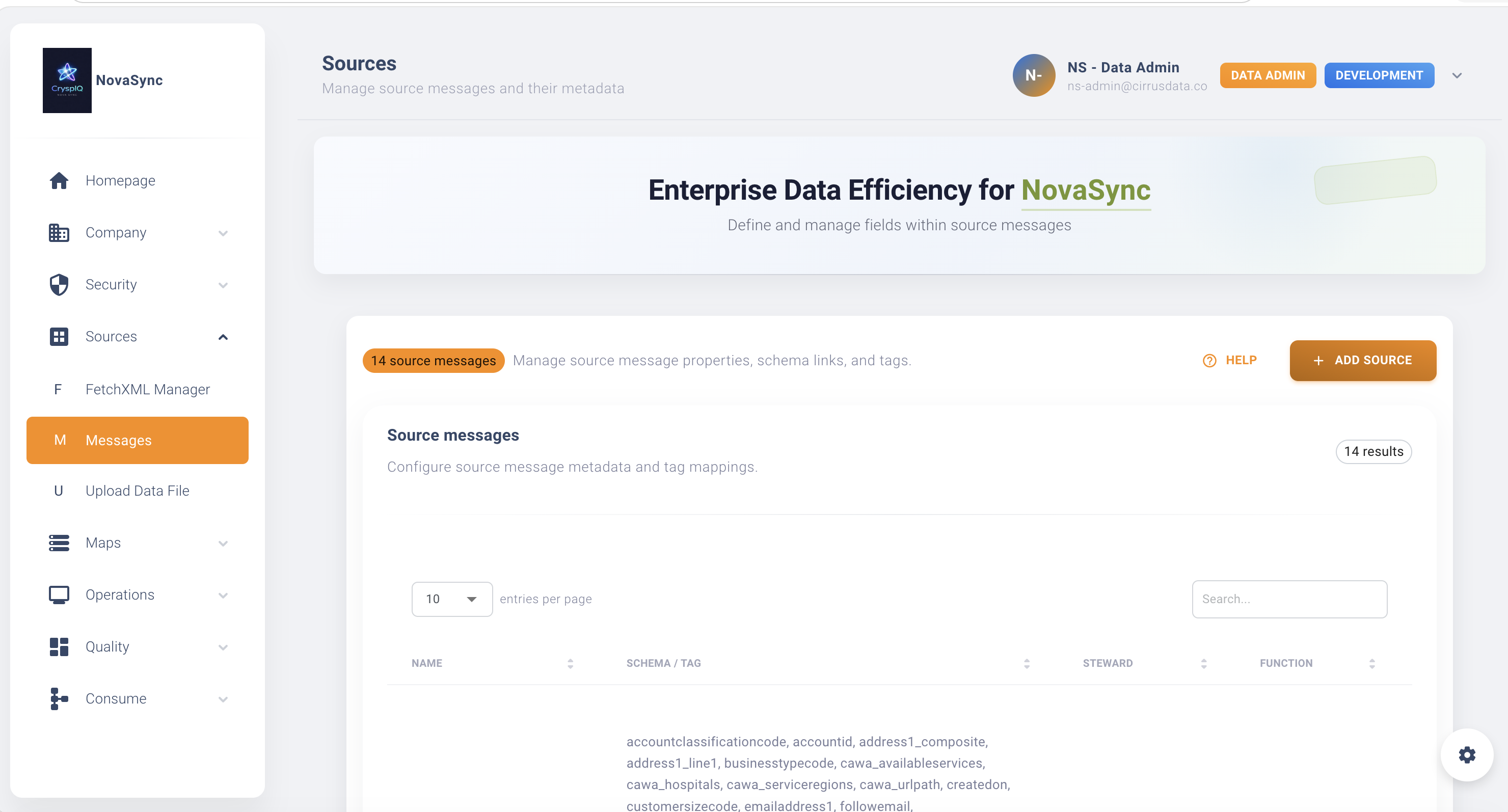
Navigate to Source Messages
From the main menu, go to:
Sources → Messages
The Messages page displays existing Source Messages and allows Data Administrators to create new ones.
Create a Source Message from a CSV File
- Open Sources → Messages.
- Select Add Source Message or Import Source Message.
- Enter the Source Message name.
- Upload the CSV file.
- Review the fields detected from the CSV header row.
- Save the Source Message.
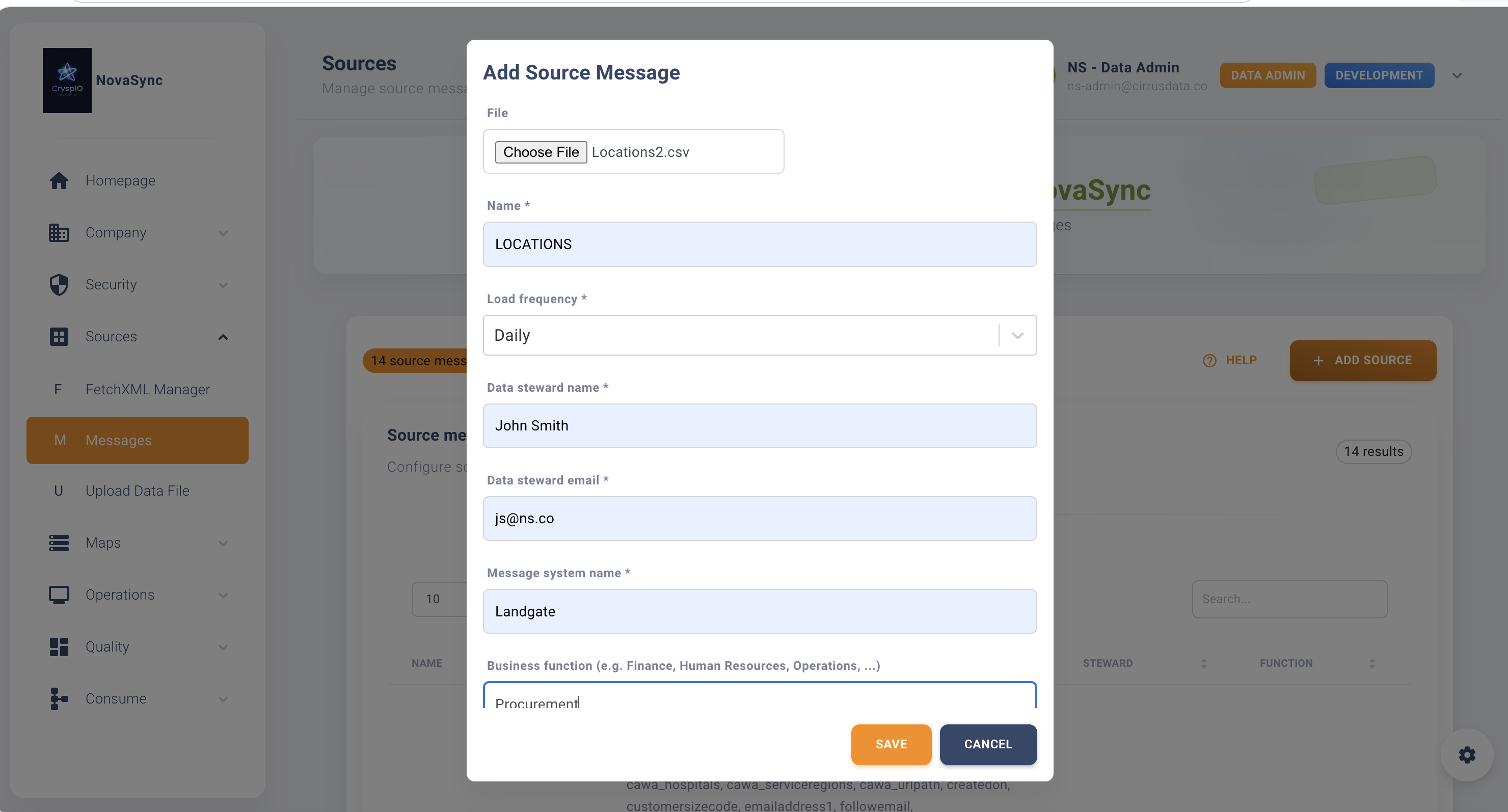
After saving, CryspIQ® creates the Source Message and stores the detected fields as the expected structure for incoming data.
Naming the Source Message
Use a clear name that identifies the source system and purpose of the message.
Good examples:
Dynamics_Accounts
Dynamics_Contacts
Payroll_Employees
ERP_Suppliers
Avoid names that are unclear or temporary:
TestFile
Upload1
NewData
Consistent naming makes it easier to find Source Messages later when creating maps or troubleshooting processing issues.
Review Source Fields
After importing the CSV, review the detected fields.
Check that:
- All expected fields are present.
- Field names are correct.
- No unexpected blank fields appear.
- Duplicate fields have not been created.
- Mandatory fields are identified where required.
Example:
| Source Field | Description |
|---|---|
| CustomerId | Unique customer identifier from the source system |
| CustomerName | Customer display name |
| DateOfBirth | Customer date of birth |
| EmailAddress | Customer email address |
| Status | Customer status in the source system |
Mandatory Fields
Some fields may be required for mapping, reconciliation or traceability.
Examples include:
- Source system identifier
- Business key
- Link key
- Modified date
- Status
- Effective date
If a field is mandatory, incoming data should contain a value for that field.
Missing mandatory fields may prevent data from being mapped, validated or processed correctly.
Source Message Ownership
Assign ownership so users know who is responsible for the data structure.
Recommended ownership details include:
| Field | Purpose |
|---|---|
| Data Owner | Business owner responsible for the data |
| Data Steward | Person responsible for quality and issue resolution |
| Source System | System where the data originates |
| Business Function | Business area responsible for the data |
Ownership helps Data Administrators and Data Stewards resolve issues when source data does not match the expected structure.
After the Source Message is Created
Once the Source Message has been created, the next step is usually to create a map.
The map defines how the source fields are transformed into CryspIQ® target messages and business context.
Typical flow:
Create Source Message
        ↓
Review Source Fields
        ↓
Create Message Map
        ↓
Apply Methods and Defaults
        ↓
Process Source Data
Example
A Data Administrator receives a CSV extract from a CRM system.
The file contains:
AccountId,AccountName,AccountType,Status,ModifiedDate
The administrator imports the CSV into CryspIQ® and creates a Source Message called:
CRM_Accounts
CryspIQ® then stores the following expected fields:
| Field | Purpose |
|---|---|
| AccountId | Source system business key |
| AccountName | Account display name |
| AccountType | Classification of account |
| Status | Current account status |
| ModifiedDate | Last modified timestamp |
This Source Message can now be mapped into the CryspIQ® enterprise data model.
Best Practices
Use Consistent Naming
Use source system and object names in the Source Message name.
Example:
Dynamics_Contacts
ERP_Suppliers
Payroll_Employees
Keep the Structure Stable
Avoid changing field names after maps have been created.
If the source structure changes, review any maps, methods and defaults that depend on the Source Message.
Identify Business Keys Early
Business keys are important for traceability, reconciliation and matching source records.
Examples:
CustomerId
AccountId
EmployeeId
SupplierId
Confirm Mandatory Fields
Mark key fields as mandatory where they are required for processing or mapping.
Assign Data Ownership
Always identify the Data Owner and Data Steward where possible.
This improves accountability and issue resolution.
Troubleshooting
CSV File Will Not Import
Check that:
- The file is in CSV format.
- The file contains a header row.
- The file is not empty.
- Column names are not blank.
- Column names are unique.
Fields Are Missing After Import
Check that:
- The CSV header row contains all expected fields.
- The correct file was uploaded.
- The file uses the expected delimiter.
- The column names are not hidden or malformed.
Duplicate Fields Appear
Check whether the CSV contains duplicate column names.
Rename duplicate columns before importing.
Mapping Cannot Be Created
Check that:
- The Source Message exists.
- Source fields were imported correctly.
- Mandatory source fields have been defined.
- The user has Data Administrator access.
Related Guides
Next Steps
After creating a Source Message:
- Review the imported fields.
- Confirm mandatory fields.
- Assign ownership and stewardship details.
- Create a message map.
- Process source data using the defined structure.
Source Messages provide the foundation for trusted data processing in CryspIQ®.